
Navigating the Ad-Free Web: Strategies to Overcome Anti-Adblock Technology
Frustrated by websites detecting your adblocker? You're not alone. Many popular sites have implemented sophisticated anti-adblock systems that can bypass even premium tools like Adblock Plus and uBlock Origin. But don't worry—there are effective solutions to restore your ad-free browsing experience.
Understanding the Website-User Dynamic
Website owners rely on advertising revenue to fund their operations, including server costs and content creation. This creates an inevitable conflict between users seeking distraction-free browsing and site administrators needing to generate income. Without subscription models or paywalls, ads become their primary revenue source.
How Websites Detect Your Adblocker
Modern websites employ several detection techniques:
• Element monitoring that identifies when ad components fail to load
• User behavior analysis that spots patterns consistent with ad-free browsing
• Strategic "bait" elements designed to trigger adblockers
• Complex detection scripts operating at both browser and server levels
Effective Countermeasures for Uninterrupted Browsing
System-Wide Protection with Standalone Blockers
Unlike browser extensions, standalone ad blockers operate at the system level, making them significantly harder to detect. These applications work across all your programs and browsers simultaneously:
• AdLock: Compatible with Windows, Android, and iOS devices
• AdGuard: Cross-platform solution with customizable filtering options
• AdAway: Android-focused blocker that works at the host file level
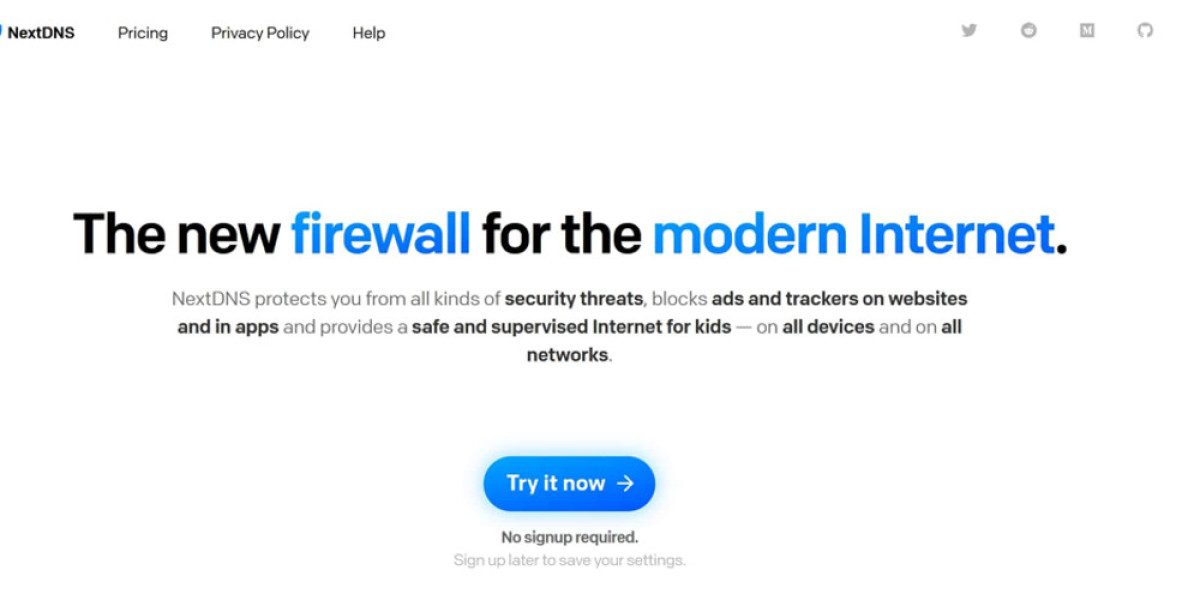
• NextDNS: Configurable DNS-based content filtering system
DNS-Level Blocking Solutions
Modifying your DNS settings offers another powerful approach to circumvent anti-adblock measures. By pointing your device to specialized DNS servers, you can block ad content before it even reaches your device. Consider these options:
• NextDNS
• Control D
• AdGuard DNS
• Quad9
• Mullvad DNS
• DeClouDUS
• RethinkDNS
VPN-Integrated Ad Blocking
Several premium VPN services now incorporate DNS-based ad blocking directly into their infrastructure. This approach filters unwanted content at the server level, preventing ads from ever reaching your device and providing an additional security layer alongside your existing ad-blocking tools.
By combining these strategies, you can effectively neutralize anti-adblock technologies and enjoy a cleaner, faster, and more private browsing experience across all your devices and applications.
Navigating the Digital Landscape: Circumventing Adblock Detection
Website functionality relies heavily on JavaScript to create interactive experiences. This programming language controls numerous elements including notifications and video playback. When websites implement adblock detection mechanisms, they often use JavaScript to identify and counteract ad blockers.
Disabling JavaScript can effectively prevent these detection systems from functioning. However, this approach comes with significant drawbacks. Many essential website features depend on JavaScript, and deactivating it may render navigation menus inoperable or prevent media content from playing.
This solution is primarily suitable for individuals who simply want to consume written content without distractions. For those willing to sacrifice certain website functionalities to achieve an ad-free experience, JavaScript management offers a potential solution.
Browser-Specific JavaScript Controls
Most popular browsers allow users to manage JavaScript settings. Chrome users can access this by clicking the menu icon, navigating to Settings > Privacy and Security > Site Settings, then scrolling to JavaScript. From there, you can selectively block JavaScript on specific websites while maintaining normal functionality elsewhere.
Firefox users can type "about:config" in the address bar, search for "javascript.enabled," and toggle this setting. For more granular control, extensions like NoScript allow you to manage JavaScript permissions on a per-site basis.
User Scripts: Customized Browsing Solutions
User scripts provide a more sophisticated approach to blocking unwanted website elements. These small programs can be configured to block popups and advertisements or bypass adblock detection systems entirely.
Extensions such as Tampermonkey and Greasemonkey simplify the implementation of these scripts. Once installed, these user script managers allow you to customize your browsing experience by ignoring intrusive elements. Pre-made anti-adblock scripts are readily available online, requiring minimal configuration.
Developer Tools for Technical Users
For technically inclined users, browser developer tools offer a powerful method to circumvent adblock detection. These built-in features allow you to examine a website's underlying code and identify the scripts responsible for detecting ad blockers.
With sufficient knowledge of HTML, CSS, and JavaScript, you can modify or disable these detection mechanisms. However, this approach requires technical expertise and patience, as the process involves considerable trial and error. Additionally, these modifications are temporary unless automated through extensions or scripts.
Community Resources and Specialized Extensions
If technical solutions seem daunting, online communities often share ready-made solutions for bypassing adblock detection on popular websites. Specialized extensions like Anti-Adblock Killer can automatically manage these scripts for you.
Cookie Management and Private Browsing
Many websites use cookies to track browsing behavior and detect ad blockers. Using private browsing modes (Incognito in Chrome or Private Mode in Firefox) creates a fresh browser instance without stored cookies, making it more difficult for websites to enforce anti-adblock measures.
This simple approach often proves effective when combined with ad blockers and script-blocking extensions.
Reader Mode: Simplified Content Consumption
Most modern browsers include a reader mode that strips away advertisements, popups, and distracting elements to present a cleaner reading experience. This feature, available in Safari, Chrome, Firefox, and Edge, can inadvertently disable adblock detection code.
While reader mode works well for text-heavy content, its effectiveness varies across different websites and may not be suitable for all online services.
Custom Filtering with uBlock Origin
uBlock Origin stands out as a powerful extension that allows users to implement custom filters and rules. These customizations can be configured to ignore scripts that check for ad blockers.
To add custom filters in uBlock Origin, open the dashboard, navigate to the Filter Lists tab, scroll to Custom, click Import, add the filter URL, and apply changes. Pre-made filters for popular websites are readily available, making this solution accessible even without extensive technical knowledge.
CSS Modifications for Visual Elements
Websites often use Cascading Style Sheets (CSS) to display warning messages when ad blockers are detected. By implementing custom CSS rules through extensions like Stylus, you can hide these messages while maintaining your ad blocker's functionality.
This approach requires occasional updates, as websites frequently modify their CSS to counter such measures.
Browser Extension Evolution and VPN Solutions
With Chrome's transition from Manifest V2 to Manifest V3, some ad-blocking extensions face limitations. Users may need to consider alternative browsers like Firefox if their preferred extensions don't adapt to the new requirements.
VPN services with built-in ad-blocking capabilities offer an additional layer of protection. Services like NordVPN and Surfshark block ads, popups, and trackers at the server level, preventing them from reaching your device. This approach not only circumvents adblock detection but also enhances privacy and improves page loading times.Overcoming anti-adblock measures on websites involves a combination of browser tools, extensions, and alternative apps. To maintain an ad-free experience while supporting content creators and website revenue, consider the following strategies.
Many VPN services now incorporate features designed to block ads and trackers. For instance, expressvpn offers a Threat Manager that prevents third-party trackers and ads from loading, along with multiple protocols and a strict no-logs policy. CyberGhost is user-friendly for beginners and includes a content blocker that filters malicious sites, ads, and trackers, with servers in over 100 countries, making it suitable for streaming. ProtonVPN, based in Switzerland, features secure core servers and NetShield DNS filtering to block ads, malware, and trackers, and is especially beneficial for torrenting due to its port forwarding.
For comprehensive ad blocking, some VPN providers offer free trials—NordVPN, for example, provides a risk-free 30-day trial to test its ad-blocking capabilities without restrictions. If you choose to try NordVPN, support is available if you decide it’s not suitable within the trial period, ensuring a full refund.
On platforms like YouTube, ads are essential for content monetization. However, anti-adblock detection has become more aggressive, making it challenging to watch videos ad-free. Some users bypass these restrictions using extensions like uBlock Origin with custom filters tailored for YouTube, or through scripts managed via Tampermonkey to disable detection scripts.
Alternatively, several third-party apps allow access to YouTube without ads, though they may violate terms of service and risk account issues. Popular options include:
- ReVanced Extended: A modified YouTube app offering ad-free viewing, background playback, and customization.
- NewPipe: An open-source client emphasizing privacy, supporting background play and offline viewing without Google services.
- LibreTube: Focused on privacy, providing ad-free access and subscription management without a Google account.
- SkyTube: An open-source Android app with ad-free viewing, video downloads, and bookmarking.
- PeerTube: A decentralized video platform alternative to YouTube, though content availability varies.
When using third-party apps or extensions, be aware that this could breach YouTube’s terms, potentially risking account suspension. For content creators or important accounts, a secondary account is advisable for ad-free viewing.
Blocking ads on Twitch presents additional challenges, as the platform actively detects and prevents ad blockers. Nonetheless, some methods work, such as using uBlock Origin with Twitch-specific filters or standalone ad blockers designed to bypass detection. Browser customization can also help; in Firefox, extensions like uBlock Origin, NoScript, and Tampermonkey can be configured to prevent adblock detection scripts from running. In Chrome, a combination of uBlock Origin, Tampermonkey, and a VPN provides robust coverage.
While blocking ads is legal, many websites rely on ad revenue to fund their services and support creators. Whitelisting trusted sites ensures their sustainability. Be aware that some sites deploy anti-adblock scripts that detect blockers through bait elements or feature checks, which might be triggered even by privacy extensions like Privacy Badger or Malwarebytes. A 2018 study indicated that nearly 9% of websites used anti-adblock scripts, a number that has grown since then.
To bypass these measures, installing ad blocker VPNs or using advanced techniques described here can help. If a site’s anti-adblock measures are particularly intrusive, temporarily disabling your ad blocker on that site may be the simplest solution—just be cautious about exposure to ads and tracking.
The most privacy-oriented browsers, like Firefox, are optimal for ad blocking and privacy protection. Firefox offers enhanced tracking protection, cookies management, and compatibility with extensions such as uBlock Origin and NoScript. Using Tampermonkey with custom scripts further helps in disabling anti-adblock prompts, such as those on YouTube.
In summary, combining browser extensions, custom scripts, VPNs with ad-blocking features, and alternative apps can help you enjoy a mostly ad-free browsing experience. However, always consider the importance of ads for websites’ sustainability, and whitelist sites you support to contribute to their continued operation.
What is a Netflix VPN and How to Get One
A Netflix VPN is a specialized tool that enables viewers to bypass geographical content blocks, granting them access to a wider array of movies and shows available in different international libraries. Users typically employ a Netflix VPN to unlock exclusive programming not offered in their home country, enhancing their streaming experience. By connecting through servers abroad, it effectively masks their actual location, allowing seamless viewing of otherwise restricted content.
Why Choose SafeShell as Your Netflix VPN?
If people want to access region-restricted content via Netflix VPN, they may want to consider the SafeShell VPN, especially when their Netflix vpn not working. SafeShell VPN offers high-speed servers specifically optimized for seamless Netflix streaming, ensuring buffer-free playback and high-definition content without interruptions. Additionally, it supports connecting multiple devices simultaneously, which means you can enjoy your favorite shows on up to five devices across various operating systems like Windows, macOS, iOS, Android, and more. The platform's exclusive App Mode allows users to unlock and enjoy content from multiple regions at the same time, expanding your entertainment options. With lightning-fast speeds and no bandwidth limitations, SafeShell VPN eliminates buffering and throttling, providing a smooth viewing experience. Its top-level security features, including the proprietary ShellGuard protocol, safeguard your privacy during browsing. Moreover, the flexible free trial plan lets you explore all these benefits risk-free, making SafeShell VPN a reliable choice for overcoming issues like a Netflix vpn not working while enjoying unrestricted access to global content.
A Step-by-Step Guide to Watch Netflix with SafeShell VPN
To use NetFlix VPN on SafeShell VPN, start by subscribing to SafeShell Netflix VPN through their official website at https://www.safeshellvpn.com/, selecting a plan that suits your needs and clicking "Subscribe Now." Next, download and install the SafeShell VPN application compatible with your device, whether it is Windows, macOS, iOS, or Android, from the website. Launch the app and log into your account by clicking on "Log In." For an optimal Netflix experience, select the APP mode within the SafeShell VPN interface. Then, browse the list of available servers and choose one located in the region whose Netflix content you want to access, such as the US, UK, or Canada. Click "Connect" to establish a secure connection to your chosen server. Finally, open the Netflix app or visit the Netflix website, log in to your account, and start streaming content from the selected region using SafeShell Netflix VPN.